Pine Script Strategy Alert Template for TradingView Webhooks
Copy this Pine Script v6 strategy alert template, or give the included prompt to your AI, to add separate long, short, and exit webhook messages.
If you already have a TradingView strategy, you should not have to rebuild its signal logic just to send the right webhook message for each fill.
The template below adds four editable alert-message inputs to a Pine Script strategy:
- long entry
- short entry
- long exit
- short exit
You paste the matching Crodl trigger JSON into each input. TradingView then substitutes the correct message when that specific strategy order fills.
This is an order-fill alert pattern for Pine Script strategies. It is different from calling alert() when a signal appears: the message is sent when TradingView's broker emulator reports that the order filled.
Copy the Pine Script v6 Alert Template
This complete example uses an EMA crossover only as placeholder signal logic. Replace that block with your strategy's own goLong and goShort conditions. Replace the sample ATR exit with your own risk logic, but keep each alert_message argument.
// This Pine Script® code is subject to the terms of the Mozilla Public License 2.0 at https://mozilla.org/MPL/2.0/
// ALERT TEMPLATE — drop-in webhook alert wiring for any strategy.
//
// HOW TO USE:
//   1. Replace the PLACEHOLDER SIGNAL block with your own logic.
//   2. Keep the ALERTS input block and every `alert_message =` argument.
//   3. Paste your bot's JSON payload into the four alert-message inputs in the strategy settings.
//   4. In TradingView, create an alert on the strategy and choose "Order fills only".
//   5. Put {{strategy.order.alert_message}} in the alert's Message box and add your webhook URL.
//
// RESULT:
//   Each order fill sends its matching message. Entries send entry payloads;
//   take-profit and stop-loss fills send the exit payload for the open direction.
//@version=6
//@strategy_alert_message {{strategy.order.alert_message}}
strategy(
    title = "Alert Template",
    shorttitle = "AlertTmpl",
    overlay = true,
    initial_capital = 10000,
    currency = currency.USD,
    default_qty_type = strategy.percent_of_equity,
    default_qty_value = 100,
    pyramiding = 0,
    process_orders_on_close = false,
    calc_on_every_tick = false,
    commission_type = strategy.commission.percent,
    commission_value = 0.018,
    slippage = 0
)

// ═══════════════════════ ALERTS — copy this reusable block ═══════════════════════
const string ALERTS_GROUP = "Alerts"
const string ALERT_TOOLTIP = "Paste the matching webhook JSON here. TradingView sends it through {{strategy.order.alert_message}} when this order fills."

string longMsg = input.text_area(
    defval = "Long",
    title = "Long entry alert",
    group = ALERTS_GROUP,
    tooltip = ALERT_TOOLTIP
)
string shortMsg = input.text_area(
    defval = "Short",
    title = "Short entry alert",
    group = ALERTS_GROUP,
    tooltip = ALERT_TOOLTIP
)
string longExitMsg = input.text_area(
    defval = "Exit Long",
    title = "Long exit alert",
    group = ALERTS_GROUP,
    tooltip = ALERT_TOOLTIP
)
string shortExitMsg = input.text_area(
    defval = "Exit Short",
    title = "Short exit alert",
    group = ALERTS_GROUP,
    tooltip = ALERT_TOOLTIP
)

// ═════════════════ PLACEHOLDER SIGNAL — replace with your own ═════════════════
// Set `goLong` and `goShort` however you like. The alert wiring does not depend
// on how the signals are produced.
float emaFast = ta.ema(close, 20)
float emaSlow = ta.ema(close, 50)
bool goLong = ta.crossover(emaFast, emaSlow)
bool goShort = ta.crossunder(emaFast, emaSlow)
float atr = ta.atr(14)

// ── ENTRIES — keep the matching `alert_message` argument ──
if goLong and strategy.position_size <= 0
    strategy.entry("Long", strategy.long, alert_message = longMsg)

if goShort and strategy.position_size >= 0
    strategy.entry("Short", strategy.short, alert_message = shortMsg)

// ── EXIT — use the message that matches the open position ──
// Replace these stop/limit calculations with your strategy's risk logic.
if strategy.position_size != 0
    int direction = strategy.position_size > 0 ? 1 : -1
    string exitMsg = direction > 0 ? longExitMsg : shortExitMsg
    float entryPrice = strategy.position_avg_price
    float stopPrice = entryPrice - direction * 2.0 * atr
    float limitPrice = entryPrice + direction * 2.0 * atr
    strategy.exit("Exit", stop = stopPrice, limit = limitPrice, alert_message = exitMsg)

plot(emaFast, "EMA fast", color.new(color.aqua, 20))
plot(emaSlow, "EMA slow", color.new(color.orange, 20))
The //@strategy_alert_message annotation pre-populates TradingView's alert Message field. Still verify that the field contains exactly {{strategy.order.alert_message}} before saving the alert.
Give This Prompt to Your AI
If you already have a strategy, copy the prompt below, paste your Pine Script after it, and send both to your AI coding assistant.
Add TradingView order-fill webhook alerts to the Pine Script strategy below.

Requirements:
1. Do not change its entries, exits, position sizing, order timing, pyramiding, or risk logic.
2. Keep its existing Pine Script version unless a version change is strictly required; explain any required change.
3. Add four input.text_area settings: Long entry alert, Short entry alert, Long exit alert, and Short exit alert.
4. Add //@strategy_alert_message {{strategy.order.alert_message}} above the strategy() declaration.
5. Add the matching alert_message argument to every order-producing strategy.entry(), strategy.order(), strategy.exit(), strategy.close(), and strategy.close_all() call.
6. Map long entries to the long-entry message, short entries to the short-entry message, exits from long positions to the long-exit message, and exits from short positions to the short-exit message.
7. Preserve every existing order ID and from_entry relationship.
8. Do not hardcode webhook URLs, tokens, credentials, or JSON payloads in the source. The four inputs must hold those values.
9. Check every order path. No fill should produce a blank alert message.
10. Return the complete, compiling Pine Script and briefly list where the alert wiring was added.

Here is my strategy:

[PASTE YOUR COMPLETE PINE SCRIPT HERE]
After the AI returns the modified script, compare its trading rules with your original. The alert change should not alter when or how the strategy places orders.
Connect the Four Crodl Payloads
Create or copy four Crodl trigger payloads and match them to the strategy inputs:
| Strategy input | Crodl action |
|---|---|
| Long entry alert | Open long |
| Short entry alert | Open short |
| Long exit alert | Close long |
| Short exit alert | Close short |
Paste each complete JSON object into its matching text area under the strategy's Settings → Inputs → Alerts group. Do not paste exchange API secrets into Pine or TradingView. Use only the execution payload Crodl provides, and keep its security_token private.
You can use our TradingView webhook JSON templates if you need examples for the four messages.
Create the TradingView Alert
After adding the strategy to a chart:
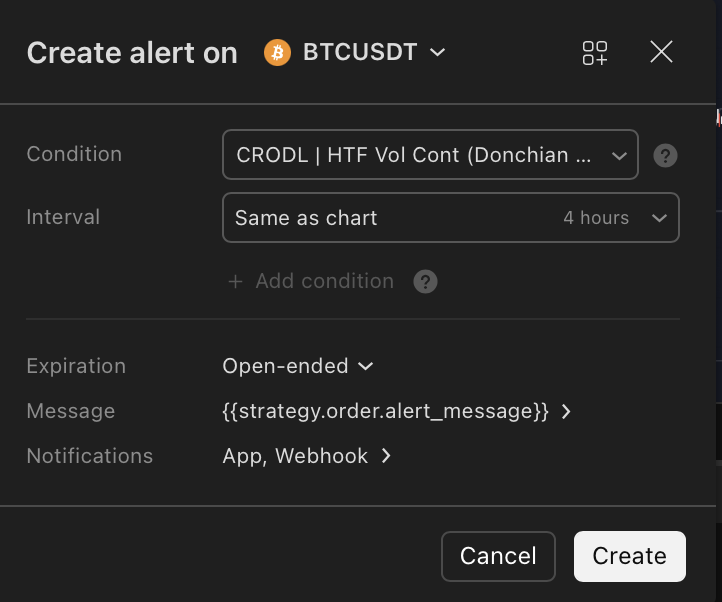
- Open Create Alert in TradingView.
- Select your strategy in Condition.
- Choose Order fills only.
- Select the Message row to open the message editor.
- Delete everything currently in the Message box.
- Paste only the following placeholder into Message:
{{strategy.order.alert_message}}
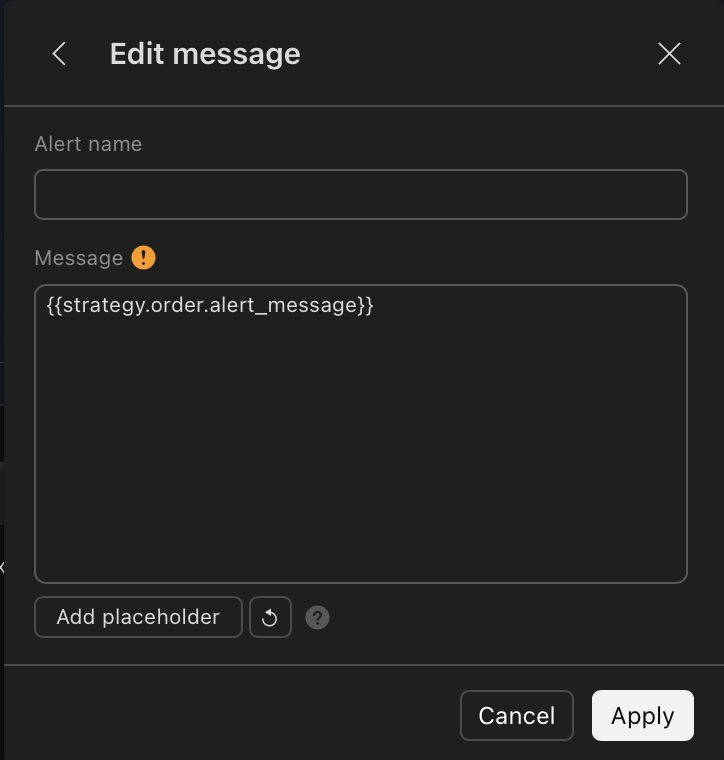
- Select Apply to return to the Create Alert dialog.
- Enable the webhook notification and paste
https://api.crodl.com/webhooks/tradingas the webhook URL. - Save the alert.
Important: Do not paste a long, short, or exit JSON payload into the TradingView Message box. It must contain only
{{strategy.order.alert_message}}. When an order fills, TradingView replaces this placeholder with thealert_messageassigned to that specificstrategy.entry(),strategy.exit(),strategy.order(), orstrategy.close()call. In this template, that value comes from the matching long-entry, short-entry, long-exit, or short-exit input where you pasted the Crodl payload.
The alert mirrors the script, its inputs, the symbol, and the timeframe at the moment you create it. If you later change the code or any alert-message input, delete and recreate the TradingView alert so the server-side copy uses the new settings.
Important Integration Checks
Cover every order-producing call
If an order call does not have an alert_message, {{strategy.order.alert_message}} becomes an empty string when that order fills. Audit every strategy.entry(), strategy.order(), strategy.exit(), strategy.close(), and strategy.close_all() path in the finished strategy.
Keep partial exits mapped correctly
Strategies with several take-profit orders can reuse the same direction-specific exit message, or expose separate payload inputs for each partial exit if Crodl must close different percentages. Preserve the existing order IDs and from_entry arguments.
Treat reversals deliberately
A strategy.entry() call in the opposite direction can reverse the simulated position. That reversal is an entry-order fill and uses the new entry's message; it does not automatically produce a separate exit-message fill for the old direction. Make sure the matching Crodl entry payload is configured to handle the opposite position in the same way as your strategy, or change the strategy to issue an explicit close only if that matches your intended trading logic.
Recreate alerts after changes
TradingView runs a saved snapshot of the strategy. Editing the script, changing its inputs, switching the chart symbol, or changing the timeframe does not update an alert that is already running.
Frequently Asked Questions
Why use alert_message instead of alert()?
alert_message attaches a message to a strategy order and sends it on the order's fill event. An alert() call runs when the script executes that line, which can be earlier than the simulated fill. For execution webhooks tied to strategy fills, use order-fill alerts.
Can I paste JSON into input.text_area()?
Yes. The text area accepts multiline text, which makes it suitable for a complete JSON payload. Paste one Crodl payload into each matching entry or exit field.
Why did an alert send an empty message?
At least one order-producing call probably lacks an alert_message argument, or the TradingView alert Message field does not contain {{strategy.order.alert_message}}. Check both, then recreate the alert.
What should I put in the TradingView alert Message box?
Put only {{strategy.order.alert_message}} in the Message box. Do not paste a Crodl JSON payload there. TradingView replaces the placeholder with the long-entry, short-entry, long-exit, or short-exit message assigned to the order that filled.
Does changing a strategy input update my running alert?
No. TradingView saves a snapshot when the alert is created. Delete and recreate the alert after changing the script, its inputs, symbol, or timeframe.
Does this template work with indicators?
No. It is designed for strategy() scripts and order-fill events. Indicators do not place simulated strategy orders; use our copy-ready Pine Script indicator alert template for separately named alertcondition() events instead.
Start with demo trading or the smallest live size available. Confirm all four paths in the Crodl execution history before increasing risk.
This content is for educational purposes only and does not constitute financial advice. Cryptocurrency trading involves significant risk of loss. Past performance does not guarantee future results.

Ready to automate your trading?
Connect your exchange, set up automations, and start trading smarter — all from one platform.
Start Trading Free