
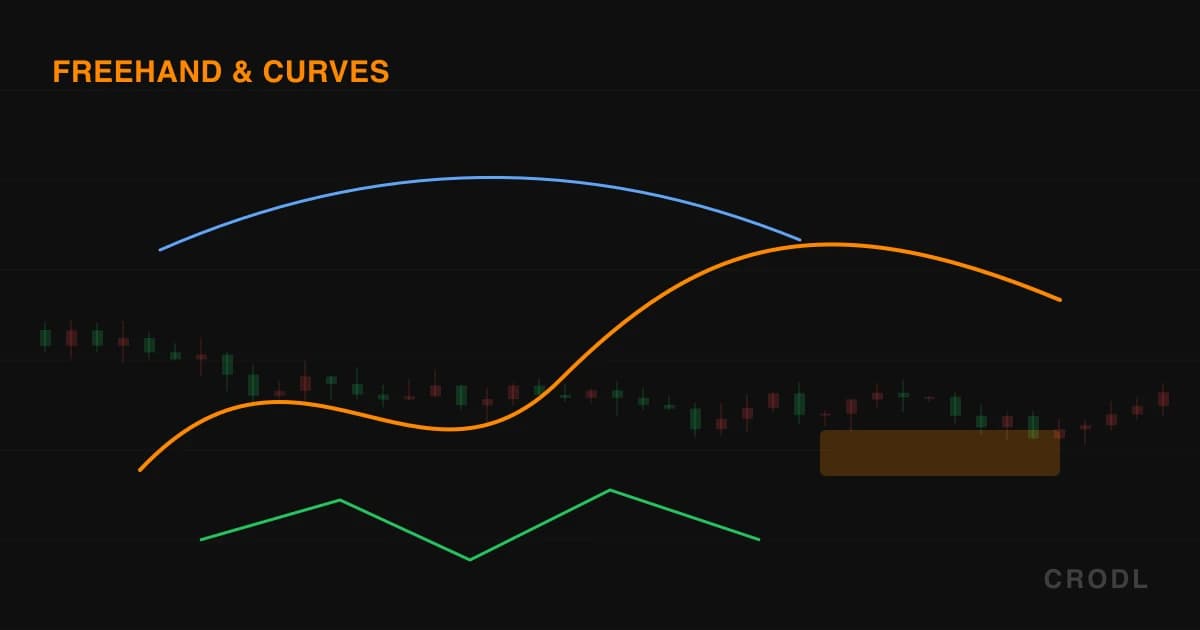
Freehand & Curves: Drawing What a Straight Line Cannot
Brush, Highlighter, Path, Polyline, Arc, Curve and Double Curve on the Crodl chart — how each stroke is captured, what the control points really do, and where every default lands.
Some market structure is not straight. A parabolic advance rolling over, a base that curls rather than bounces, a rounded top that never gives you two clean touches to connect — draw a trend line through any of them and the line is a lie you will trade against later.
Seven tools exist for exactly that. Four capture a shape point by point or by dragging the pointer; three build a mathematically clean curve from a few anchors. All seven live in the Shapes flyout on the drawing toolbar down the chart's left edge — Brush and Highlighter under its Brushes heading, the other five under Shapes. None has a keyboard shortcut, so you pick them from the flyout; Escape returns you to the cursor and cancels anything half-drawn. For the full toolbar layout, the drawing tools guide is the map.
Strokes: chains you click, strokes you drag
Path
Click each vertex in turn. The chain stays armed — there is no fixed click count — and a double-click finishes it. Two anchors is the minimum; the cap is 256, and hitting it commits the drawing for you.
Every vertex gets its own draggable handle when the path is selected, so you can reshape any joint without redrawing. An arrowhead sits on the final segment, always, pointing where the chain ended — 9px, or 11px once the stroke is 3px or wider. Amber at 1.8px by default. Use it when the story has direction: the leg-by-leg route price took out of a range, ending with the arrow on the move you expect next.
Polyline
Mechanically identical — click to add vertices, double-click to finish, 256-anchor cap, a handle on every point. The one difference is that no arrowhead is drawn, and the default colour is blue rather than amber.
That absence is the point. A path asserts a direction; a polyline just traces a shape. It is the honest tool for outlining a rounded top, or a descending series of highs that curls rather than falls.
Brush
Press, drag, release. While the pointer is down, a sample is recorded every time it has travelled at least 2 pixels from the last one, up to 1,024 samples per stroke; releasing commits. A gesture interrupted by a pointer cancellation or the window losing focus is discarded whole, leaving no undo entry behind. Press without moving and you get a single selectable dot, a filled circle the width of the stroke.
The stroke is then smoothed for display only — one Chaikin corner-cutting pass in pixel space, roughly doubling the segment count and rounding the joints while the stored anchors stay exactly as captured. And brush anchors deliberately do not snap to candle slots the way ordinary drawing anchors do: each sample keeps a fractional bar position and an interpolated timestamp, so a stroke that crosses the middle of a candle stays there after a reload or a timeframe change.
The default is orange at 2px. This is the thinking tool — circling the thing you noticed, scribbling the shape of a move before you have words for it.
Highlighter
The same capture, sampled every 3 pixels instead of 2, with a very different render. The highlighter draws at 32% of the layer's opacity and at 2.25× its nominal width, with an 8px floor — both effects apply, translucency and a much fatter stroke. At its default width of 5, that is an amber band about 11px wide you can read candles through.
That combination makes it a region marker rather than a line. Swipe it across the session you are studying or the price band you keep getting stopped in: it shades without hiding.
Curves: three anchors, three different meanings
All three are drawn by clicking anchors and commit as soon as the last one lands. They differ in whether the points you click sit on the curve.
Arc
Three clicks: start, a point the curve must pass through, and end. Crodl fits the true circular arc through all three — the middle click is a point on the curve, not a magnet, so what you click is what you get. If the three points are nearly collinear it falls back to a quadratic that still passes exactly through your middle anchor, so a shallow arc never degenerates. Sky blue at 1.8px by default, and selecting it shows three handles and nothing else.
This is the tool for an arc of support: left edge of a rounded base, its lowest point, right edge — the curve threads all three.
Curve
Three clicks again, but the middle one means something different. It is a control point for a quadratic Bézier: the curve bends toward it without ever touching it. At its halfway mark the curve sits midway between your control click and the straight line joining the two ends — so to make it pass through a point, click roughly twice as far out as that point.
Select it and two dashed guides appear at low opacity, start to control and control to end, which is how you see where the pull comes from. Pink at 1.8px. Pick Curve over Arc when you want to tune the bend by feel rather than nail three touches.
Double Curve
Four clicks: start, two control points, end. That is a cubic Bézier, which can change direction mid-flight — the S-shape neither of the other two can make. Rose at 1.8px.
The guides shown on selection are the two end tangents: start to the first control, second control to the end. Each control steers the direction the curve leaves the anchor beside it — the first the opening bend, the second the closing one. It draws a whole rotation, accumulation curling up into an advance or distribution rounding over into a decline, as one object instead of two.
Styling and housekeeping
All seven select into the standard drawing context bar: colour, line style, width, duplicate, copy and paste, lock, delete, a Visible checkbox that hides a drawing without deleting it, and a button that promotes the current settings to the tool's default.
Honest limitations
One stroke per activation. Committing a drawing returns the tool to the cursor, so a five-stroke sketch means picking Brush five times. Safe, but slow.
Freehand strokes are barely editable. Brush and Highlighter expose only two handles — the first and last sample — and dragging one moves that single sample, not the shape around it. Drag the body to reposition the whole stroke; to change the middle, redraw it.
Magnet quantises freehand. Magnet mode (M) snaps anchor prices to the hit candle's open, high, low or close, and freehand sampling is not exempt — a stroke drawn with magnet on comes out stair-stepped. Turn it off before brushing, or hold Ctrl/Cmd while drawing to invert it.
The highlighter's default width is not in the width picker. It ships at 5; the bar offers 1, 1.5, 2, 2.5, 3 and 4. Change it and you cannot pick 5 again from the toolbar.
None of these tools reports a number. No price pill, no percentage, no bar count — unlike the line tools, which measure as you draw. These are shape, not measurement. And the display smoothing rounds joints, it does not rescue a shaky hand: a stroke drawn badly stays drawn badly.
Frequently Asked Questions
Arc or Curve — which should I use?
Arc, if you know three points the line has to touch — it fits a circular arc through all three and the middle click lands on the curve. Curve, if you want to shape the bend by feel: its middle click is an off-curve control point that pulls the line toward it. Same three clicks, opposite mental models.
Do brush strokes survive a timeframe change?
Yes. Each sample stores an interpolated timestamp plus a fractional bar position rather than snapping to a candle slot, so strokes re-project onto the same moments in time instead of drifting to the nearest bar.
Why is my highlighter so much wider than the width I set?
By design. It multiplies its stroke width by 2.25 with an 8px minimum and paints at 32% opacity, so a nominal 5 renders as an ~11px translucent band. The width control still scales it — it just scales a band, not a line.
Can I edit a shape after drawing it?
Depends which one. Path and Polyline give you a handle on every vertex; Arc, Curve and Double Curve give you one on every anchor and control point. Brush and Highlighter give you two endpoint handles and a draggable body — closer to a photograph of a gesture than an editable object.
Draw the shape the market actually made
The Shapes flyout is on every Crodl terminal chart. Next time a trend refuses to fit a straight line, stop forcing it — trace it with a Polyline, thread an Arc through the base, or swipe the Highlighter over it and come back later.
This article is for educational purposes only and is not financial advice. Leveraged trading carries substantial risk of loss. Always do your own research and never risk more than you can afford to lose.

Ready to automate your trading?
Connect your exchange, set up automations, and start trading smarter — all from one platform.
Start Trading Free